I think many people face the same dilemma I did: we don’t want to lose data, so we simply dump everything into cloud storage (like Dropbox). The same thing happens when I back up my computer — I often do it in bulk, with big gaps between backups. Each time, I come up with a slightly different way of organizing files. Over the years, this inconsistency has turned my cloud storage into a dumping ground, wasting both space and mental bandwidth.
Another pain point is photos. Every time I consider organizing them — deleting the meaningless ones and sorting the rest — I get overwhelmed by the sheer size of the task and put it off.
This is exactly the kind of tedious work AI is great at. Unlike more creative tasks where large language models (LLMs) can hallucinate, organizing files is straightforward and rules-based. It felt natural to me that AI should be able to help. For a long time, though, I didn’t know how to get started.
When agent modes became mainstream in AI platforms, I thought I had found the answer. But after trying ChatGPT’s web-based agent, I was shocked at how clumsy it was — watching it fail to click a simple checkbox in the Dropbox web client was painful. After wasting two hours, I gave up.
That’s when I started looking into the MCP protocol and realized it could help. Unlike GUI-based agents that burn tokens mimicking mouse clicks, MCP makes everything machine-readable and structured. After a bit of research, I decided to try Gemini-CLI (which recently topped GitHub’s trending charts) together with a third-party Dropbox MCP server.
Quick Setup
Installing Gemini-CLI
This part is straightforward. Just follow Gemini-CLI’s GitHub README.
I tested on my MacBook and simply used Homebrew to install it:
brew install gemini-cliAfter installation, you need to authenticate Gemini-CLI. You can either:
- Run
gemini-cli, type/auth, then select 1. Login with Google - Or use your Gemini API Key (see the official tutorial)
Running MCP Server
Instructions for the Dropbox MCP server can be found in its README, or you can follow these steps:
git clone https://github.com/amgadabdelhafez/dbx-mcp-server.git
cd dbx-mcp-server
npm install
npm run build
npm run setup
During setup, you’ll need to create a Dropbox app in the Dropbox App Console. Make sure to grant all required permissions, then provide the details back to the interactive shell when prompted.
Once that’s done, the setup will open a browser window asking you to authenticate your Dropbox app. After login, you’ll be redirected to a local URL like this:
http://localhost/?code=WBjFx90NRQwdv8TM71kf343coS7Q5J2l8WnqwCopy the code back into your shell to complete the configuration.
I recommend selecting 1. Generate Claude Desktop config when asked, which will automatically update your Claude configuration:
Would you like to generate MCP configuration files?
1. Generate Claude Desktop config
2. Generate Cline config
3. Generate both
4. Skip

Enter your choice (1-4): 1
You’ll then see confirmation that the Claude Desktop config has been updated.
Configuring Gemini for MCP Servers
Now copy the MCP configuration into Gemini-CLI’s settings.json file located at ~/.gemini/settings.json.
Make sure to allow the dbx-mcp-server in the mcp section, for example:
{
  ...
  "mcp": {
    "allowed": [
      "dbx-mcp-server"
    ],
    "excluded": []
  },
  "mcpServers": {   // Copied from Claude Desktop config
    "dbx-mcp-server": {
      "command": "node",
      "args": [
        "/tmp/Github/dbx-mcp-server/build/src/index.js"
      ],
      "env": {
        "DROPBOX_APP_KEY": "...",
        "DROPBOX_APP_SECRET": "...",
        "DROPBOX_REFRESH_TOKEN": "..."
      },
      "disabled": false,
      "autoApprove": []
    }
  }
}
Finally, restart Gemini-CLI. Run the command /mcp list and you should see the dbx-mcp-server listed as ready, with its available tools:
Configured MCP servers:

  🟢 dbx-mcp-server - Ready (13 tools, 2 prompts)
    Tools:
    - copy_item
    - create_folder
    - delete_item
    - download_file
    - get_account_info
    - get_file_content
    - get_file_metadata
    - get_sharing_link
    - list_files
    - move_item
    - safe_delete_item
    - search_file_db
    - upload_file
How I Use It
I’m not going to dive deep into how MCP works — I’m a newbie myself. But I did find this blog post extremely easy to follow, especially with its self-explanatory flow chart:
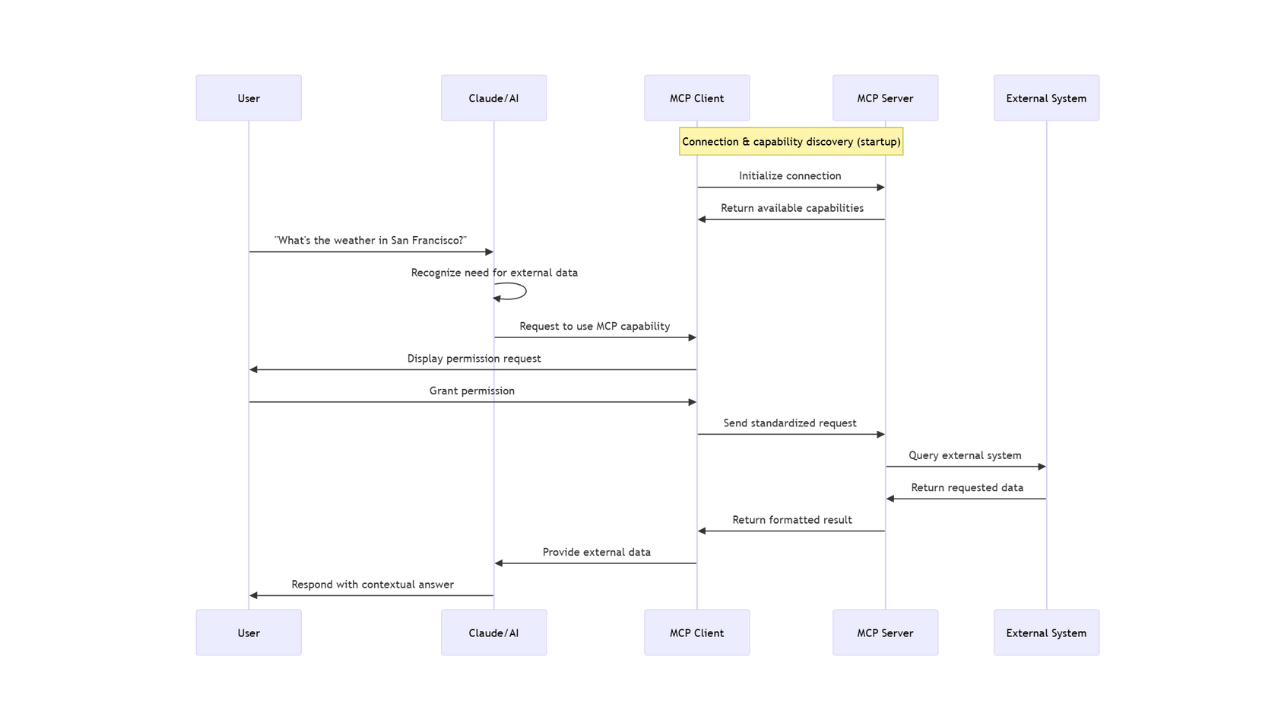
Below are some of the prompts I’ve tried and what I learned from them.
Prompt 1
Prompt: Could you analyze all my major folders (top 3 levels) and give me a new directory tree structure I can further use?
Result:
- ❌ The folder suggestions still looked strange and needed a lot of guidance.
Prompt 2
Prompt: There are a lot of unorganized files in this folder. Could you categorize them in a general way that avoids overcomplicating or fragmenting into too many folders or nested folders? After that, generate a plan on how to move them and ask for my approval before execution.
Result:
- ✅ The assistant generated a plan and asked for feedback.
- I provided additional suggestions:
- Took ~20 conversation rounds before it could reliably categorize based on file content.
- ⚠️ Privacy note: This prompt may leak personal information to the LLM service. Be cautious.
- Time: ~20 minutes of planning, ~400 files categorized. (Execution time not measured — I multitasked while it ran.)
Prompt 3
Prompt: Could you scan all non-target folders, find empty ones, list them, and then delete them after my review?
Result: ✅ Successfully executed and correctly removed empty folders.
Prompt 4
Prompt: Find all folders that could be merged based on name similarity (and path).
Result: ✅ Found 16 folder pairs that could be merged.
Personal Feelings and Conclusion
Even though MCP + Gemini-CLI can achieve very good performance on some tasks, it’s still difficult for even the most advanced LLMs to fully understand situations and consistently make the right calls based on their own analysis. Human input is still essential.
Beyond that, I had five strong personal takeaways:
Prompt size limitations
Even with a 2M token context, it’s tiny compared to human memory. Using flat, non-hierarchical memory structures for LLMs is not scalable — both logically and infrastructurally.MCP’s verbosity
While MCP is a solid connector schema, it’s verbose and sometimes makes the context size problem worse.Good for general tasks, risky for details
This approach works great for general asks, but struggles with detailed organization tasks like renaming or fine-grained document sorting. For example, it once miscategorized some of my identity documents (an uncommon format) into a tax folder — a serious mistake.Weak multimedia handling
Feeding in entire videos, large photo sets, or even a bulk of small photos from one trip doesn’t work well. This reminded me of how most YouTube summarizers today are still transcript-based rather than visual-based.Privacy concerns
Privacy is a major pain point. Even when using my own API key or self-deployed services, the risk of leaking sensitive personal information during file organization (or similar workflows) still feels dangerous.
Overall, MCP + Gemini-CLI is powerful and promising for Dropbox organization, but it’s not a complete replacement for careful human oversight. For now, I see it as an assistant — not an autopilot.
Leave a Reply